Getting Started
Warning
Disclaimer: P2PP is a post processing tool that relies on patterns in the gcode generated by
PrusaSlicer in order to insert the required GCODE for the operation of the Palette device. Due
to the vast amount of settings in PrusaSlicer it CANNOT be guaranteed that all
combinations of settings will produce output that print as intended. P2PP and its
developers cannot be held responsible for any damage occurring from using this tool.
Use at your own risk!
Very important!
P2PP offers a lot of nice 3d printing support features to for your Palette device, but it
is important to understand that no tool will ever produce good results when the
hardware is not correctly setup and calibrated.
So:
-
Make sure your printer is capable of successfully printing single color 3d prints.
Sounds silly but if the models you print in one color do not express the desired quality, then why would you expect multi colored ones to do so? -
Make sure the extruder is properly calibrated.
The palette devices rely on the gcode defined filament consumption to be the same as the actual filament consumption. Any deviation may result in color swaps, early or late transitions, color smear ...
Palette devices are clever that will try to correct up to a certain margin of error, but the responsibility of keeping the error rate low is with the end user. -
More importantly, even than the correctness of the amount of filament used, is the consistency in filament use.
First layers should be well calibrated. The filament flow should be fully unobstructed so no short bends in the feed tube. -
Follow the Palette calibration process using the Mosaic Mfg suggested prints using the Mosaic supplied slicing tools.
Though they can be achieved using P2PP, when new it is a safer bet to use Canvas or Chroma. -
Palette devices learn to work with your printer over the course of a few prints.
Once they are calibrates, you should receive consistent prints. It is important to remember that doing a significant change to your printer (e.g. changing the number of steps per mm for your extruder) WILL impact the collaboration between palette and printer and new calibration will be needed.
Start simple! P2PP and PrusaSlicer offer a large amount of interesting features, but before swimming across the Atlantic, try getting on the other side of the pool... no kidding...
Try to work from a profile you know works in single color on your printer, only when basic multi-color printing is working, turn to features like the tower delta, side wipe, wipe to infill etc.
It is tempting, but most of troubleshooting will link back to the success of simple things.
You will probably lose more than the amount of material. you are trying to save.
Installation
Start by downloading the latest release/tag here or you could try and build it yourself.
Run the correct installer based on your OS and note the program location.
After installation, double click the P2PP program and you will get a screen like the following:
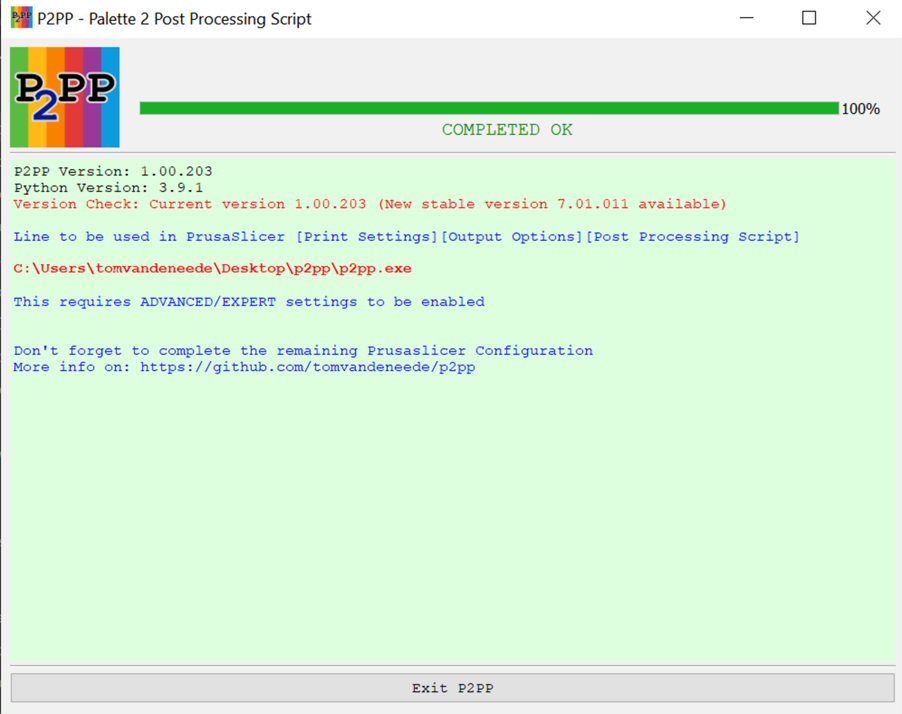
Note the text in bold red – you will need this for later configuration of the actual script.
Congratulations, you have completed the first step of the installation!
You can move on to the section on PrusaSlicer configuration.